Nissan Murano: Starting and driving / Traffic Sign Recognition (TSR) (if so equipped)
The TSR system provides the driver with
information about the most recently detected
speed limit. The system captures
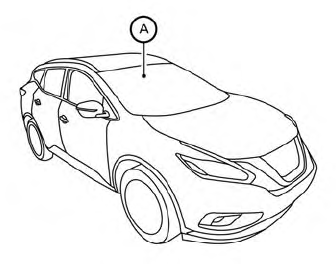
the road sign information with the multisensing
front camera unit  located on
the windshield in front of the inside rearview
mirror and displays the detected
signs in the vehicle information display. For
vehicles equipped with a navigation system,
the speed limit displayed is based on a
combination of navigation system data
and live camera recognition. TSR information
is always displayed at the top of the
vehicle information display if the system is
enabled in the Driver Assistance settings.
located on
the windshield in front of the inside rearview
mirror and displays the detected
signs in the vehicle information display. For
vehicles equipped with a navigation system,
the speed limit displayed is based on a
combination of navigation system data
and live camera recognition. TSR information
is always displayed at the top of the
vehicle information display if the system is
enabled in the Driver Assistance settings.
WARNING
The TSR system is only intended to be a support device to provide the driver with information. It is not a replacement for the driver’s attention to traffic conditions or responsibility to drive safely. It cannot prevent accidents due to carelessness. It is the driver’s responsibility to stay alert and drive safely at all times.
- System operation
- Turning the Traffic Sign Recognition (TSR) system on and off
- System temporarily unavailable
- System malfunction
- System maintenance
 Parking brake
WARNING
Be sure the parking brake is fully released
before driving. Failure to do so
can cause brake failure and lead to an
accident.
Do not release the parking brake from
outside the vehicle...
 System operation
The Traffic Sign Recognition (TSR) system
displays the following types of road signs:
Speed sign detected (in Canada)
Speed sign detected (in USA)
Speed sign detected (no speed
limit detected)
“Do not pass” sign detected
CAUTION
The TSR system is intended as an aid
to careful driving...
Other information:
Nissan Murano (Z52) 2015-2024 Service Manual: P0451 Pressure Sensor
DTC Description DTC DETECTION LOGICAn excessively low voltage from the sensor is sent to ECM. DTC CONSULT screen terms (Trouble diagnosis content) DTC detection condition P0451 EVAP SYS PRES SEN (EVAP control system pressure sensor performance) Diagnosis condition Ignition switch ON Signal (terminal) EVAP control system pressure sensor signal ECM (Built in barometric pressure sensor) Threshold ECM detects a state that the pressure difference remains the threshold value or more for continuously for 5 seconds or more under the condition that the pressure of the EVAP control system pressure sensor and that of the barometric pressure sensor are equal...
Nissan Murano (Z52) 2015-2024 Service Manual: Rcta
System Description SYSTEM DIAGRAMADAS CONTROL UNIT INPUT/OUTPUT SIGNAL ITEMInput Signal Item Transmit unit Signal name Description TCM CAN communication Current gear position signal Receives a current gear position. Shift position signal Receives a select lever position...
Categories
- Manuals Home
- Nissan Murano Owners Manual
- Nissan Murano Service Manual
- Tire rotation
- Vehicle Dynamic Control (VDC) OFF switch
- All-Wheel Drive (AWD) (if so equipped)
- New on site
- Most important about car
Seatback pockets
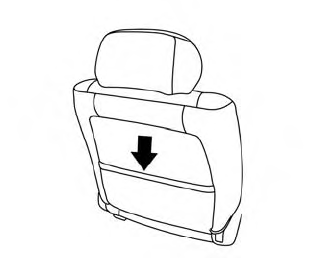
Theremaybe one or two seatback pockets located on the back of the driver and passenger seats. The pockets can be used to store maps.
WARNING
